BeatStars Licenses Explained: MP3, WAV, Trackout & Exclusive
Whether you're selling or buying beats on BeatStars, one thing you'll always have to deal with is the "license." MP3 Lease, WAV Lease, Trackout (Stem), Unlimited, Exclusive — you may have heard the names, but surprisingly few people can accurately explain "what actually differs between them" and "what's written in the contract."
This article organizes how BeatStars licensing works from both the buyer's and the seller's perspective. The content has been fact-checked against the official BeatStars help center (help.beatstars.com) as of July 7, 2026. For the producer tags you add to preview audio, see how to make a producer tag (Voice Tag).
1. The core premise: you're selling a "right to use," not the beat
First, the most important premise. What's traded on BeatStars is, in almost all cases, not ownership of the beat but the right to use it (a license).
The official help center organizes licenses into two broad types.
- Non-exclusive license (Lease): a "lease" with caps on usage terms. The producer can sell the same beat to any number of people, and the official help center explicitly states there is no limit on the number of non-exclusive licenses sold.
- Exclusive license: generally a transfer of rights, where in many cases the buyer becomes the new copyright holder. After the sale, the beat can no longer be sold anew to others.
One more crucial point: license terms, prices and contract wording are all managed by each individual producer. BeatStars itself does not manage licenses or prices, and terms vary by producer. In other words, there's no absolute rule that "a BeatStars MP3 Lease means such-and-such terms" — in the end, the individual contract is everything.
2. Understanding the five licenses at a glance
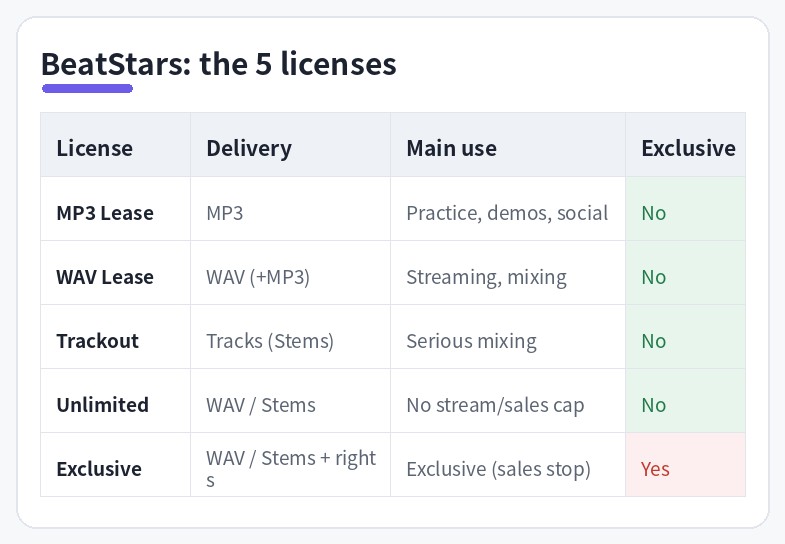
That said, there's a "standard tier" that many producers adopt. The main things that create differences are: (1) the files delivered, (2) the caps on usage terms, and (3) whether it's exclusive.
| License | Typical delivered files | Characteristics | Rough price |
|---|---|---|---|
| MP3 Lease | MP3 | The cheapest entry license. Usage caps are low | $25–40 |
| WAV Lease | WAV + MP3 | Uncompressed high quality. Suited to streaming release | $40–75 |
| Trackout (Stem) Lease | ZIP (stems) + WAV + MP3 | Includes per-track data for a serious mix | $75–150 |
| Unlimited Lease | Varies by producer (often includes WAV/Stems) | Removes caps on distribution etc. while staying non-exclusive | $150–300 |
| Exclusive | WAV + full Stems is common | Exclusive deal. No new sales afterward | $300+ |
*Delivered files and prices are set by each producer, so they aren't uniform. Prices reflect general international market norms (an editorial estimate).
A quick note on Trackout (Stems)
Trackout is a license that comes with per-track stems exported separately, such as "drums," "bass" and "melody." Buyers can make adjustments impossible with a two-track mix to fit their vocals, so it's favored by artists aiming for a serious release. As a note for sellers, uploading Stems is limited to the Growth plan and above (official help center, as of July 2026).
What's the difference between Unlimited and Exclusive?
Both are similar in that they can be "used without caps," but Unlimited is still non-exclusive. The producer can keep selling the same beat to others. Exclusive, on the other hand, is an exclusive deal, and no new sales of that beat happen afterward. Choose Exclusive if you "don't want anyone else using it," and Unlimited if "being able to use it without worrying about caps is enough."
3. What's in the contract (Non-Exclusive License Agreement)?
When you buy a beat on BeatStars, a contract is issued for each license. It works by having each producer set terms based on the contract template BeatStars provides. The main clauses in a typical template are as follows.
- Distribution cap: how many copies of the finished song you can sell/distribute
- Streaming cap: a cap on streams on Spotify, Apple Music and so on
- Number of music videos: how many MVs using the beat you can publish
- Radio / live-performance use: conditions for number of stations and for-profit live use
- Credit requirement: an obligation to credit the producer, e.g. "Prod. by ○○"
- Modification: editing to turn it into a song by adding vocals/rap (tempo changes, arrangement, etc.) is generally allowed, while reselling the beat on its own or as material is generally not
- Term: many contracts end after a set period from the effective date; the length and renewal conditions depend on the template settings
- Royalty / publishing split: how rights are split if the song is a hit
To repeat, the specific numbers (distribution, stream counts, term and so on) vary by producer. The official help center also states that "contract terms vary by each producer's settings" and "the terms of each license can be read on the cart page before purchase," so buyers should always check the full contract on the cart page.
After an Exclusive sells, what happens to existing non-exclusive buyers?
This is a common question, and the official help center gives a clear answer. If the default contract template is used, anyone who bought a non-exclusive license before the exclusive rights were sold can continue to use it under the original terms. However, this doesn't apply if a producer has customized the contract on their own, so ultimately you need to check the individual agreement.
4. The buyer's view: 3 checks to avoid choosing the wrong license
1) Always read the contract on the cart page
Even two "MP3 Lease" options that look identical can have completely different terms shop by shop. At a minimum, check the distribution and stream caps, credit requirements and term. If anything is unclear, you can message the producer directly (the official help center suggests this method too).
2) Work backward from your release plan
The basic idea: "MP3 Lease if it's just demos and social posts," "WAV or above for a streaming release," "Trackout if you'll build the mix out," "Unlimited or Exclusive if you're betting on a potential hit." If you look likely to exceed a cap, the common approach is to buy (upgrade to) a higher license.
3) Keep the fees in mind
For purchases via the Marketplace (the market on beatstars.com), a 12% service fee on the subtotal is added on the buyer's side (this doesn't apply via a producer's Pro Page or embedded player; official info as of July 2026). Even for the same beat, what you pay can change depending on the purchase route.
5. The seller's view: steps and tips for setting up licenses
Sellers create and edit licenses (contracts) from the Contracts section in BeatStars Studio. The official help-center steps are as follows.
- Open "Contracts" in Studio and, from "Create Contract," choose one of Non-exclusive / Free Download / Exclusive
- Set the license name and description (e.g. MP3 Lease, WAV Lease…)
- Set the default price and, if using offers, the minimum offer price
- Under Files to deliver, choose which of MP3, WAV and Stems to include
- Choose whether to auto-enable this license on new uploads
- Edit the terms in the "Contract" tab (a simple editor, or Full Customization to customize the entire text)
- Select the tracks to apply it to and Publish
You can also see this flow in a tutorial video (in English) from the official BeatStars channel.
▶ How to Create Contracts on BeatStars (BeatStars, official channel)
Points sellers should keep in mind
- Always have the delivered files ready: if you set a license to "include WAV or Stems," that license won't become purchasable until you upload the relevant files. Note that if you upload an untagged WAV, a tagged preview and MP3 for streaming are generated automatically (for details, see how to make a producer tag).
- Keep a copy of the full contract yourself: the official help center suggests methods such as adding your own beat to the cart in an incognito window to review the contract from the buyer's view, or copying and saving the full text from the Full Customization screen.
- You can always reset to the template: if you've over-customized, there's a feature to reset back to the default BeatStars template.
- Take legal concerns to a professional: templates are freely editable, but BeatStars itself clearly states it "cannot provide legal advice." For high-value deals such as Exclusives, consulting a lawyer or similar is recommended.
Frequently asked questions
Q. Can I sell the same beat to as many people as I want?
A. With a non-exclusive license (lease) there is no problem. The official BeatStars help center states there's no limit on the number of non-exclusive licenses you can sell. Once you sell an exclusive license for a beat, you can no longer make new sales of that beat.
Q. If an exclusive sells, can earlier non-exclusive buyers still use it?
A. According to the official help center, if you use the default contract templates, anyone who bought a non-exclusive license before the exclusive rights were sold can continue to use it under the original terms. However, if a producer has customized the contract, this may differ, so check the individual agreement.
Q. Can I read the license terms before buying?
A. Yes. According to the official BeatStars help center, the terms of each license can be read on the cart page before you complete checkout. Conditions such as distribution caps and credit requirements vary by producer, so always read them before buying.
Q. Can I set the license terms freely myself?
A. Yes. BeatStars contract templates are fully customizable, letting you freely edit prices, delivered files and contract clauses. That said, the company itself states it cannot provide legal advice, and consulting a professional is recommended for high-value deals.
Summary
BeatStars licensing looks complex at first, but it's actually simple once you organize it along three axes: "delivered files," "usage caps" and "whether it's exclusive."
- What's sold is the right to use the beat. Terms are managed by each producer
- Buyers should read the full contract on the cart page and choose by working backward from their release plan
- Sellers design licenses in Studio's Contracts and should keep a copy of the contract themselves
Once your license setup is set, prepping to sell is next. For preview audio you can use Beat Lab: Producer Tag maker, and for titles and tags Beat Lab: Type Beat title & tag generator.